What is a PDF?
PDF means Portable Document Format. It packages a document into pages that can be viewed and shared across different devices. Understanding what is inside a PDF helps you choose how to reduce its size or prepare it for someone else.
A page with a stable layout
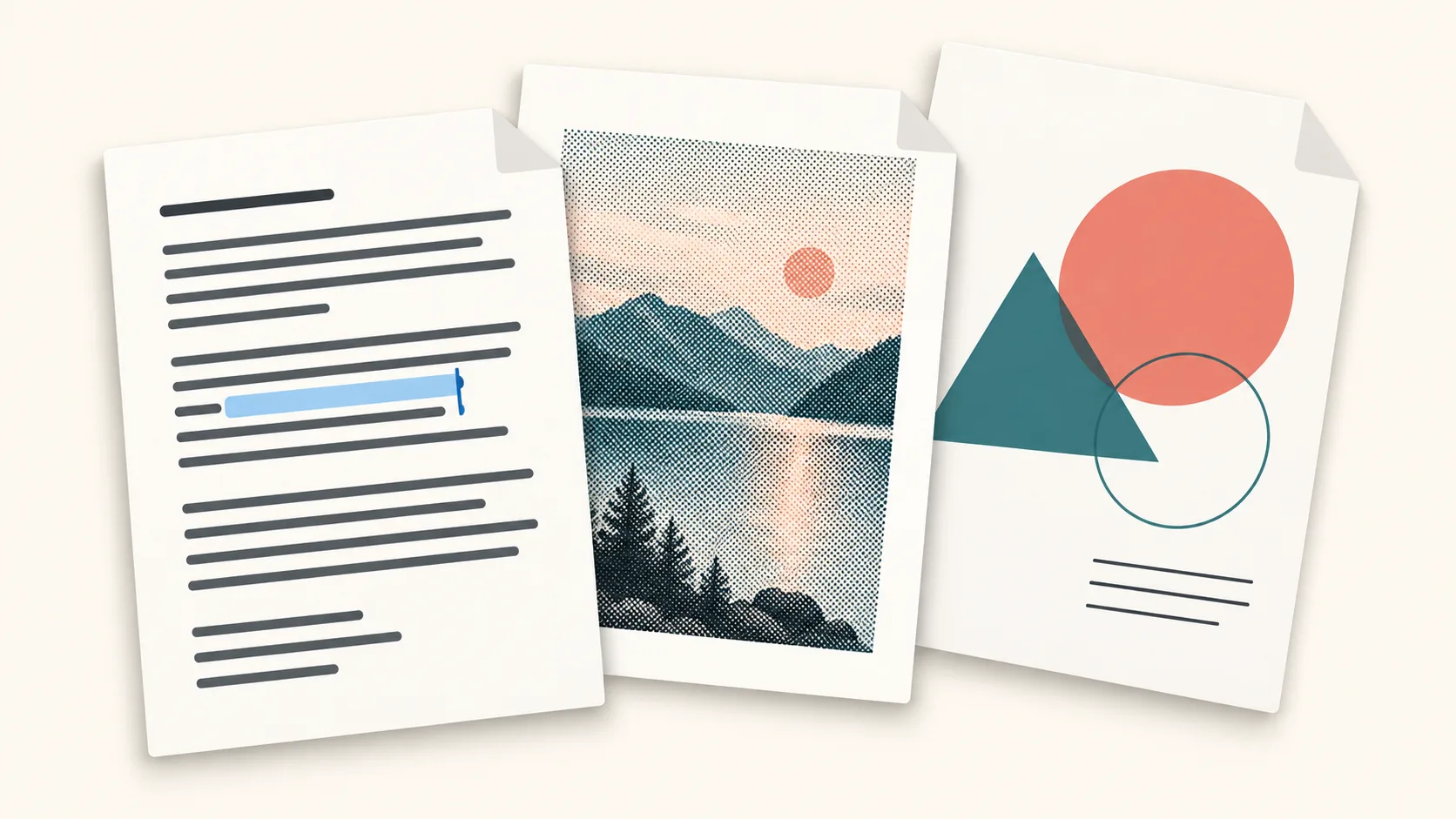
A PDF records where text, images and other elements belong on a page. Unlike an editable document, it normally keeps the same page breaks and arrangement when opened elsewhere. Adobe’s overview of PDF explains this purpose: sharing documents without relying on the original application.
This makes PDF useful for invoices, application forms, reports and manuals. It does not mean every viewer displays every feature identically. Fonts, interactive forms and unusual content can still need checking. Keep the editable source document when you may want to revise the wording or layout later.
Text pages and scanned images
A PDF exported from a word processor often contains actual text. You can usually select words, search for a phrase and copy a passage. A scan may instead contain a photograph of each page. The letters are visible, but the file may not know that they are letters.
Optical character recognition, or OCR, can add a searchable text layer to a scan. It can misread small print, handwriting or poor photographs, so check the result. Compressing a scan does not by itself recognize its text, correct spelling or make the document accessible.
Why some PDFs are large
Full-page images, high scan resolution and color photographs can take much more space than plain text. A short scanned document may therefore be larger than a long report exported from its source. File size depends on the content and how it was encoded, not just the page count.
The guide to reducing scanned PDFs explains what to inspect. Smaller images can save space, but fine details may become harder to read. Keep the original file and compare small text, stamps and diagrams before sharing a reduced version.
Choose a tool for the job
Use PDF compression when you need a smaller copy; the reduction varies and an already optimized file may change little. Use splitting by size when separate parts are acceptable. Use page organization to rotate, reorder or remove pages you do not need.
Read the history of PDF for how document exchange shaped the format. Whatever operation you choose, open the output, check its pages and keep your original and editable source.
For common text problems, read why PDF text may not be selectable. For archival requirements, see PDF versus PDF/A.