
Complete guide: Reduce scanned PDF size
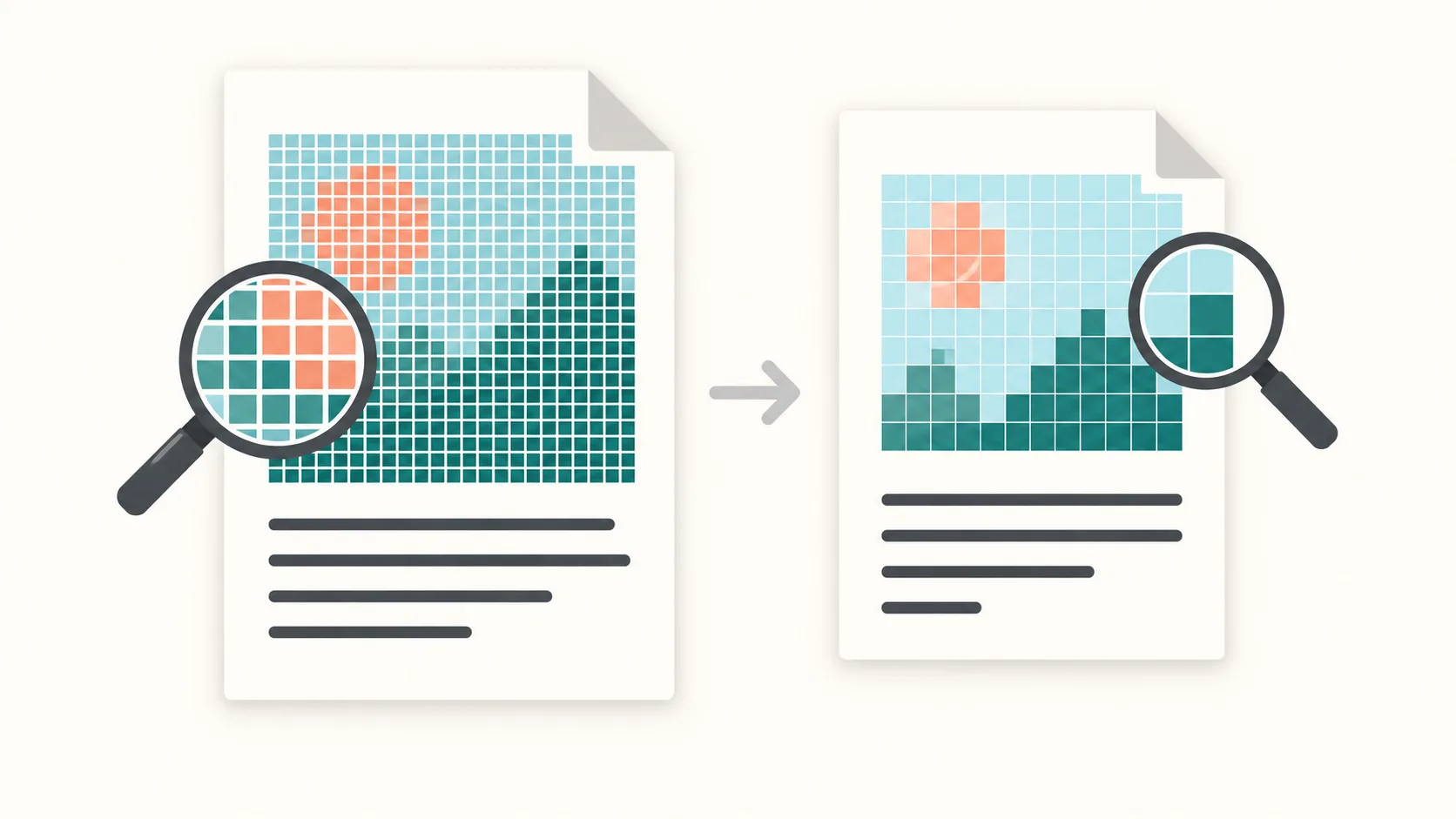
A scanned PDF stores pages as images. Start with a realistic size target, compare the result with your original and keep the smallest version that is still readable for your purpose.
1. Keep the original and upload a copy
Photographs, background noise and high-resolution page images can make a scan much larger than a text-based PDF. Cleaning metadata alone may make little difference; reducing image data can change the appearance of the page.
Keep the original scan. Note its page count and file size before starting so you can compare the output with the source.
Open PDF compression and choose your PDF. Work from a copy when preparing a document for delivery.
2. Choose an MB target and quality setting
Use the limit required by the receiving website or email service. You can choose a preset or enter a custom MB target. For example, a 10 MB upload limit is a size constraint to try, not a promise that every scan can fit.
Start with Smart quality and inspect the result. A tighter target may require stronger image compression. There is no universal KB-per-page target that preserves every document's small print.
The 25 MB preset and 20 MB preset are available for common email workflows. Check the recipient's actual limit and account for other attachments; see the attachment-limit guide.
3. Decide whether you need one PDF or separate parts
If one readable PDF cannot meet your target, consider splitting by size when the recipient accepts multiple files. The limit applies to each PDF part, not the total size of the ZIP archive containing the parts.
Extract the archive and open the PDFs in order. Send parts separately where necessary. Splitting does not make a single oversized page smaller: that page may need a higher size limit, stronger compression or a new scan.
If the receiving form accepts only one PDF, separate parts are not a substitute. Use a less restrictive destination or adjust the scan and retry; fitting every file is not guaranteed.
4. Inspect readability before sharing
Open the original and result at the same zoom. Compare the smallest print, numbers, stamps, signatures and shaded areas. Check that all pages are present and in order; a smaller byte count does not prove that the document is usable.
If important details are blurred, keep the original and retry with a higher target or a less aggressive quality setting. A rescan may help when the original is already difficult to read.
The measured example below uses a synthetic file. Its page labels and lines remained visible on both output pages, but the background texture changed. This is not a readability test for real contracts or receipts.
If text selection fails, see the guide to unselectable PDF text. If size barely changes, read why further compression may have little effect.
Scanned PDF FAQ
Will compression make text blurry?
It can. Scanned text is part of an image, so stronger image compression can remove detail. Compare small print in the result with the original before sharing.
What target size should I use?
Start with the receiving service's limit and check whether the result remains readable. There is no single size per page that is suitable for all scans.
What if one page is larger than the target?
Splitting between whole pages cannot solve that case. Try a higher target, stronger image compression or a new scan, then inspect the result.
Measured example: before and after
One synthetic scan, two pages
This intentionally noisy synthetic two-page file contains page labels and lines, not customer information. Before: 1,176,905 bytes. After: 344,660 bytes, still two pages.
In a local PDFThin engine run on September 13, 2026, the file became 70.7% smaller. The 1 MB setting meant 1,048,576 bytes with a 262,144-byte safety margin. The result was one PDF; no split was needed.
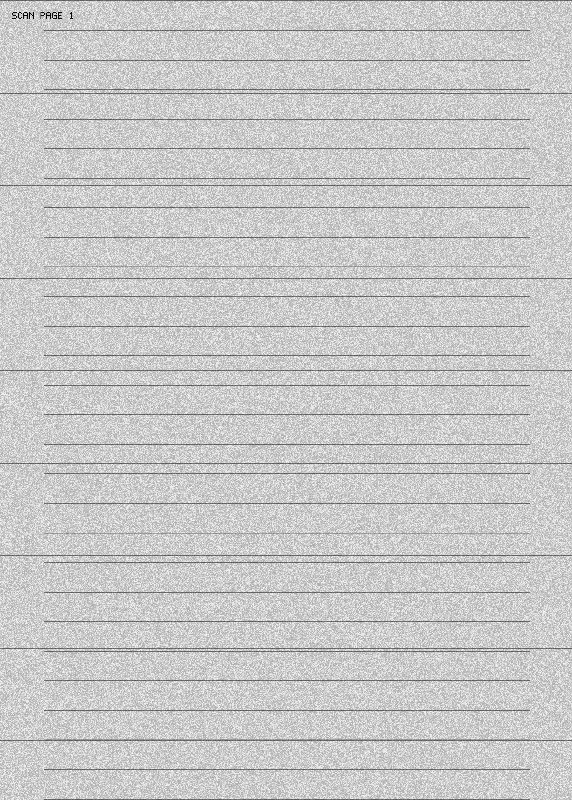
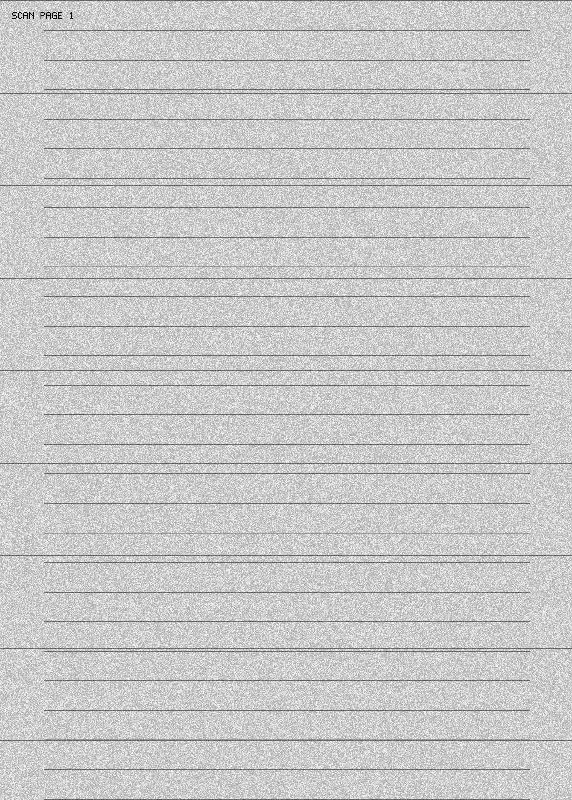
Both pages rendered and passed a structural PDF check. This one example is not a compression or quality guarantee. Savings and readability depend on the original images, target, quality settings and available engines. The previews use the same rendering settings.
Try compression with your own PDF, keeping the original for comparison. If separate files are acceptable, read the split-by-size guide. For email-specific limits and delivery choices, see the email-compression guide.