
Guida completa: ridurre PDF scansionato
Le scansioni sono pesanti. Questa guida spiega come ridurre la dimensione e verificare la leggibilità del risultato.
Perché le scansioni sono grandi
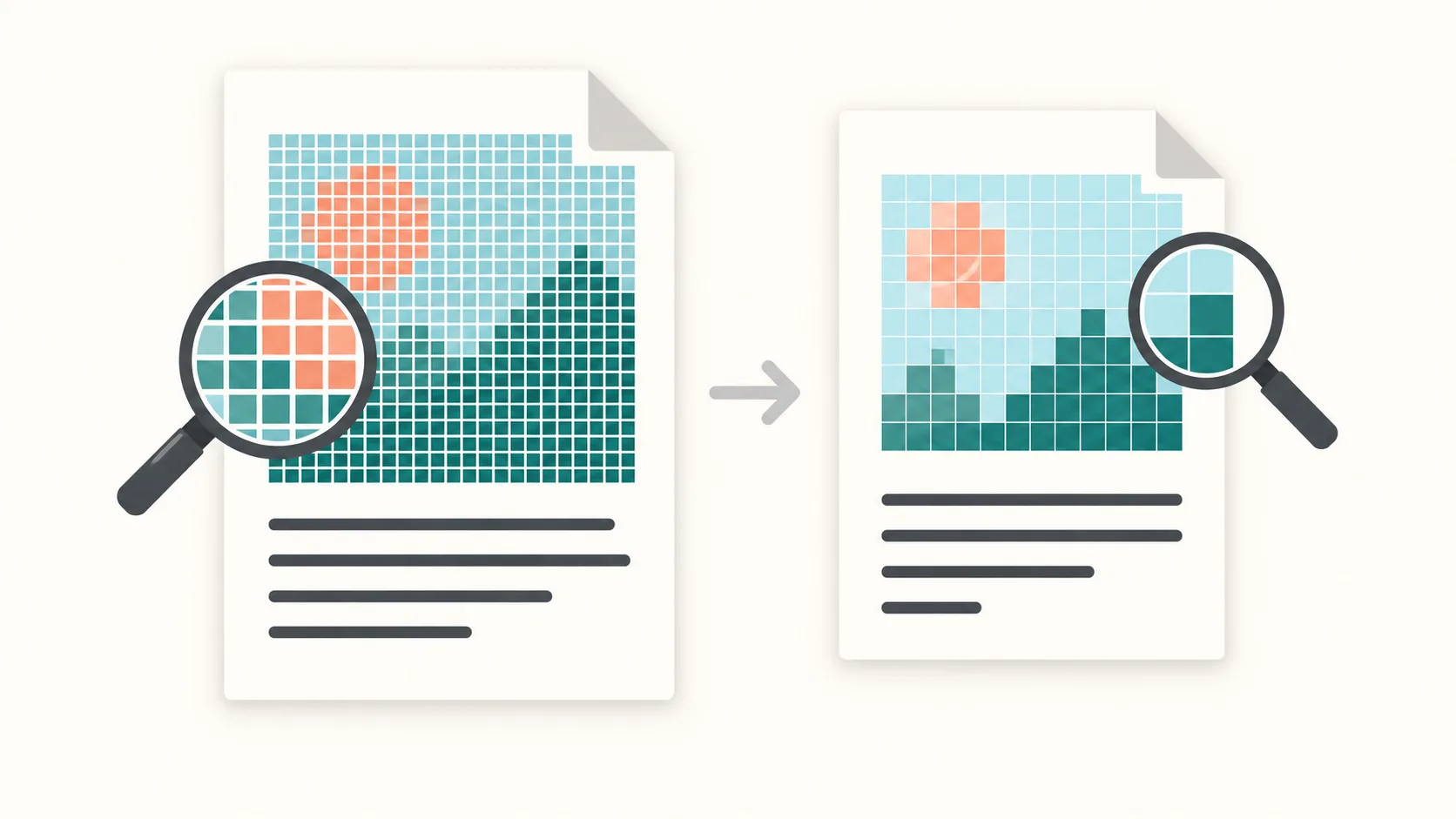
Gli scanner salvano ogni pagina come una grande immagine. Una scansione a 300–600 DPI può pesare diversi megabyte per pagina, quindi i documenti lunghi raggiungono in fretta i 50–200 MB. A differenza dei PDF testuali, i file scansionati non si comprimono bene con una semplice pulizia dei metadati.
La ricompressione delle immagini e la rimozione dei dati colore inutili possono ridurre la dimensione, ma anche alterare i dettagli e la leggibilità.
PDFThin si concentra sul contenuto che conta: nitidezza del testo e ordine delle pagine. Tu scegli l’obiettivo, lo strumento bilancia dimensione e leggibilità.
Mantieni la leggibilità
Inizia con la qualità intelligente e confronta il risultato con l’originale. Controlla soprattutto il testo piccolo, le tabelle e i timbri; un’impostazione di qualità non garantisce la leggibilità.
Un limite di dimensione rigido può richiedere una compressione delle immagini più forte. Se i dettagli importanti diventano sfocati, prova un obiettivo maggiore o un’impostazione di qualità meno aggressiva.
Un obiettivo di dimensione minore non migliora automaticamente la qualità. La compressione può eliminare dettagli e non può recuperare quelli mancanti nell’originale.
Definisci un target
Inizia con un preset email se prevedi di inviare il file come allegato. Gmail usa 25 MB, Outlook spesso 20 MB e Outlook.com supporta 25 MB. Se il tuo PDF è appena sopra il limite, imposta un target personalizzato 2–5 MB più basso per evitare l’overhead di codifica.
Per i caricamenti, scegli il limite reale per file e verifica la leggibilità. Non esiste un obiettivo universale in KB per pagina adatto a tutte le scansioni.
La divisione conserva pagine intere e il loro ordine. Non può far rientrare una singola pagina troppo grande nel limite; prova un obiettivo maggiore, una compressione più forte o una nuova scansione e controlla il risultato.
Checklist pratica per i PDF scansionati
1) Conserva l’originale. 2) Scegli un obiettivo in MB secondo il limite reale per file. 3) Dividi solo se il destinatario accetta più file. Il limite si applica a ogni parte PDF, non allo ZIP completo. 4) Confronta il testo piccolo, le tabelle e i timbri con l’originale.
Se non ti serve il colore, una nuova scansione in scala di grigi può ridurre la dimensione alla fonte. Verifica la leggibilità anche dopo la compressione, prima di condividere il file.
Inizia da qui: Compressione Email-ready o Dividi per dimensione.
Se la selezione non funziona, consulta la guida al testo non selezionabile. Se le dimensioni cambiano poco, leggi perché un’altra compressione può servire poco.
FAQ scansioni
Perché le scansioni sono così grandi?
Perché ogni pagina è un’immagine.
Il testo resta leggibile?
Non è garantito. La compressione può eliminare dettagli dell’immagine. Confronta il testo piccolo, le tabelle e i timbri con l’originale.
E se non basta?
Dividere può aiutare se sono accettati più file. Non fa rientrare una singola pagina troppo grande nel limite; scegli un obiettivo maggiore o prova una compressione più forte o una nuova scansione.
Risorse utili
Altri strumenti
Se hai limiti, dividi: Dividi per dimensione.