
Guía completa: Reducir PDF escaneado
Los escaneos son pesados. Esta guía muestra cómo reducir el tamaño y comprobar la legibilidad del resultado.
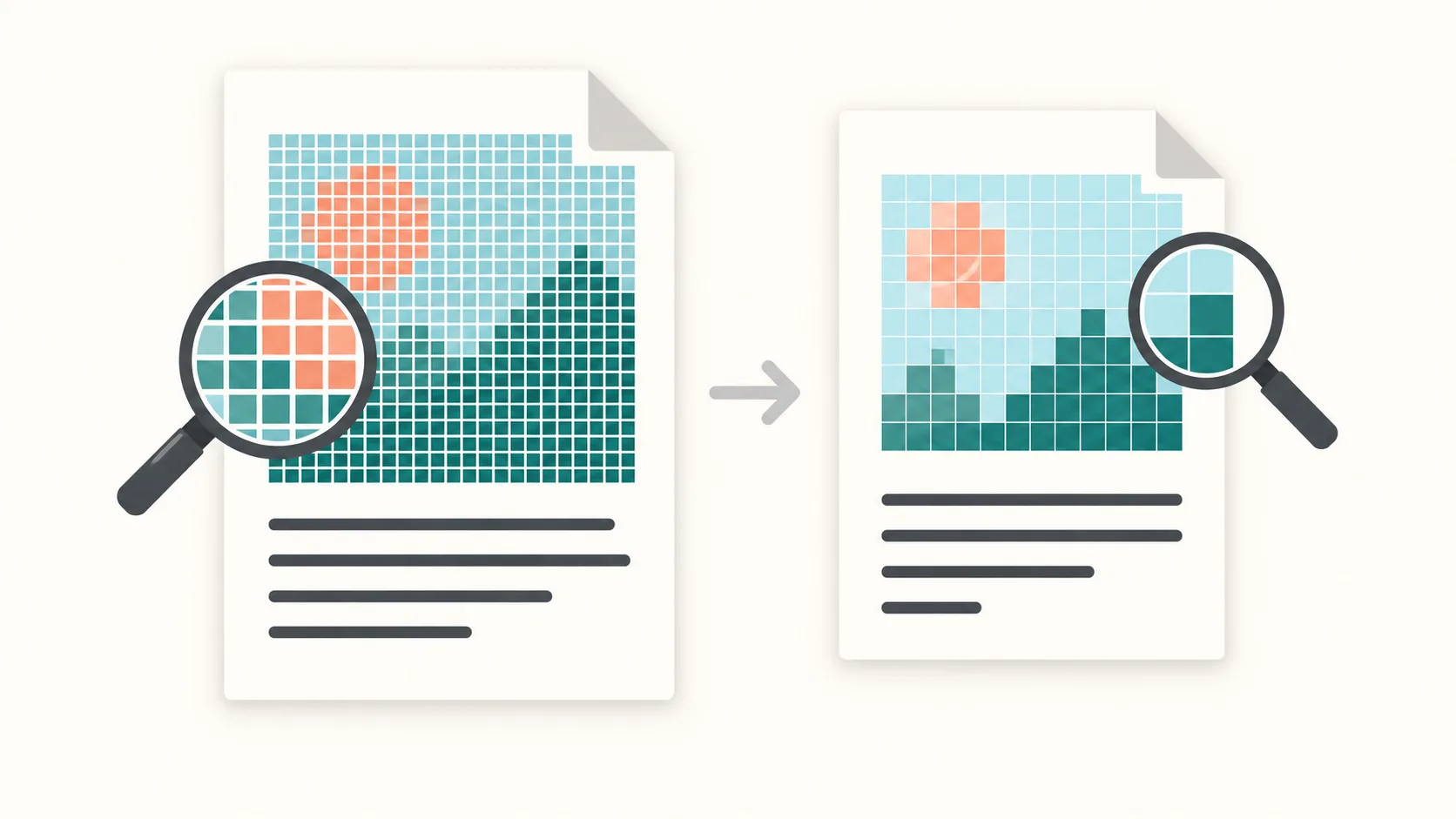
Por qué los escaneos pesan mucho
Los escáneres guardan cada página como una imagen grande. Un escaneo a 300–600 DPI puede ocupar varios megabytes por página, así que los documentos largos alcanzan rápido los 50–200 MB. A diferencia de los PDFs de texto, los archivos escaneados no se comprimen bien con una simple limpieza de metadatos.
La recompresión de imágenes y evitar datos de color innecesarios pueden reducir el tamaño, pero también alterar los detalles y la legibilidad.
PDFThin se centra en el contenido que importa: la nitidez del texto y el orden de las páginas. Tú eliges el objetivo y la herramienta equilibra tamaño y legibilidad.
Mantén la legibilidad
Empieza con calidad inteligente y compara el resultado con el original. Revisa especialmente el texto pequeño, las tablas y los sellos; un ajuste de calidad no garantiza la legibilidad.
Un límite de tamaño estricto puede requerir una compresión de imágenes más fuerte. Si se difuminan detalles importantes, prueba un objetivo mayor o un ajuste de calidad menos agresivo.
Un objetivo de tamaño menor no mejora automáticamente la calidad. La compresión puede eliminar detalles y no puede recuperar los que faltan en el original.
Define un objetivo
Empieza con un preset de email si vas a enviar el archivo como adjunto. Gmail usa 25 MB, Outlook suele usar 20 MB y Outlook.com admite 25 MB. Si tu PDF está apenas por encima del límite, fija un objetivo personalizado 2–5 MB más bajo para evitar la sobrecarga de codificación.
Para subidas, elige el límite real por archivo y comprueba la legibilidad. No hay un objetivo universal de KB por página adecuado para todos los escaneos.
Dividir conserva páginas enteras y su orden. No puede hacer que una sola página demasiado grande quepa bajo el límite; prueba un objetivo mayor, una compresión más fuerte o un nuevo escaneo y revisa el resultado.
Lista de comprobación práctica para PDFs escaneados
1) Conserva el original. 2) Elige un objetivo en MB según el límite real por archivo. 3) Divide solo si el destinatario acepta varios archivos. El límite se aplica a cada parte PDF, no al ZIP completo. 4) Compara el texto pequeño, las tablas y los sellos con el original.
Si no necesitas color, un nuevo escaneo en escala de grises puede reducir el tamaño en origen. Comprueba la legibilidad también después de comprimir, antes de compartir el archivo.
Empieza aquí: Compresión lista para email o Dividir por tamaño.
Si no puedes seleccionar texto, consulta la guía del texto no seleccionable. Si el tamaño cambia poco, lee por qué otra compresión puede aportar poco.
FAQ de escaneos
¿Por qué los escaneos son tan grandes?
Porque cada página es una imagen.
¿El texto seguirá legible?
No está garantizado. La compresión puede eliminar detalles de la imagen. Compara el texto pequeño, las tablas y los sellos con el original.
¿Y si aún no cabe?
Dividir puede ayudar si se permiten varios archivos. No hace que una sola página demasiado grande quepa; elige un objetivo mayor o prueba una compresión más fuerte o un nuevo escaneo.
Recursos útiles
Más herramientas
Si hay límites, divide: Dividir por tamaño.