
Kompletter Leitfaden: Gescanntes PDF verkleinern
Scans sind bildlastig. Dieser Leitfaden zeigt, wie Sie die Größe reduzieren und die Lesbarkeit des Ergebnisses prüfen.
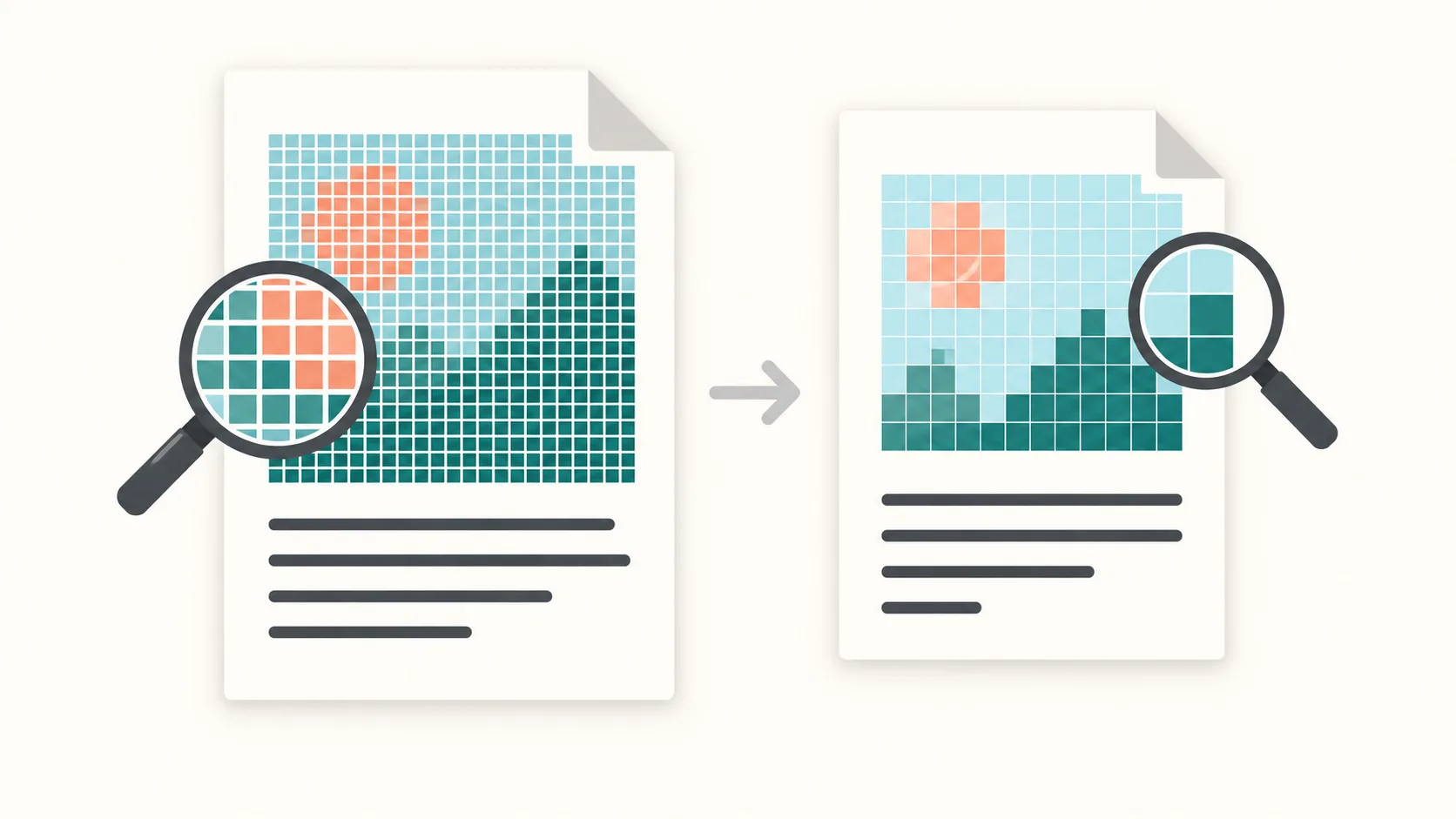
Warum Scans so groß sind
Scanner speichern jede Seite als großes Bild. Ein Scan mit 300–600 DPI kann mehrere Megabyte pro Seite belegen – lange Dokumente erreichen schnell 50–200 MB. Anders als textbasierte PDFs lassen sich gescannte Dateien mit einfacher Metadaten‑Bereinigung kaum komprimieren.
Bild-Rekomprimierung und der Verzicht auf unnötige Farbdaten können die Größe reduzieren, aber auch Bilddetails und die Lesbarkeit verändern.
PDFThin konzentriert sich auf das Wesentliche: Textschärfe und Seitenreihenfolge. Sie wählen das Ziel, das Tool balanciert Größe und Lesbarkeit.
Lesbarkeit erhalten
Starten Sie mit Smart-Quality und vergleichen Sie das Ergebnis mit dem Original. Prüfen Sie besonders kleine Schrift, Tabellen und Stempel; eine Qualitätseinstellung garantiert keine Lesbarkeit.
Ein striktes Größenlimit kann stärkere Bildkomprimierung erfordern. Wenn wichtige Details unscharf werden, versuchen Sie ein höheres Ziel oder eine weniger aggressive Qualitätseinstellung.
Ein niedrigeres Größenziel verbessert nicht automatisch die Qualität. Komprimierung kann Details entfernen und keine im Original fehlenden Details wiederherstellen.
Zielgröße setzen
Beginnen Sie mit einem E‑Mail‑Preset, wenn Sie die Datei als Anhang senden möchten. Gmail nutzt 25 MB, Outlook oft 20 MB und Outlook.com unterstützt 25 MB. Liegt Ihr PDF knapp über dem Limit, setzen Sie ein benutzerdefiniertes Ziel 2–5 MB niedriger, um Kodierungs‑Overhead zu vermeiden.
Wählen Sie für Uploads das tatsächliche Limit pro Datei und prüfen Sie die Lesbarkeit. Es gibt kein universelles KB-pro-Seite-Ziel, das für alle Scans geeignet ist.
Teilen erhält ganze Seiten und ihre Reihenfolge. Eine einzelne zu große Seite kann dadurch nicht unter das Limit gebracht werden; versuchen Sie ein höheres Ziel, stärkere Komprimierung oder einen neuen Scan und prüfen Sie das Ergebnis.
Praktische Checkliste für gescannte PDFs
1) Behalten Sie das Original. 2) Wählen Sie ein MB-Ziel passend zum tatsächlichen Dateilimit. 3) Teilen Sie nur, wenn der Empfänger mehrere Dateien akzeptiert. Das Limit gilt pro PDF-Teil, nicht für die gesamte ZIP. 4) Vergleichen Sie kleine Schrift, Tabellen und Stempel mit dem Original.
Wenn Sie keine Farbe brauchen, kann ein neuer Scan in Graustufen die Größe an der Quelle senken. Prüfen Sie auch nach der Komprimierung die Lesbarkeit, bevor Sie die Datei weitergeben.
Starten Sie hier: E‑Mail‑fertige Komprimierung oder Nach Größe teilen.
Bei Auswahlproblemen hilft der Guide zu nicht auswählbarem Text. Bei geringer Größenänderung lesen Sie, warum weitere Komprimierung wenig bewirken kann.
Scan‑FAQ
Warum sind Scans so groß?
Weil jede Seite als Bild gespeichert ist.
Bleibt der Text lesbar?
Nicht garantiert. Komprimierung kann Bilddetails entfernen. Vergleichen Sie kleine Schrift, Tabellen und Stempel mit dem Original.
Was, wenn es trotzdem zu groß ist?
Teilen kann helfen, wenn mehrere Dateien erlaubt sind. Eine einzelne zu große Seite passt dadurch nicht; wählen Sie ein höheres Ziel oder prüfen Sie stärkere Komprimierung oder einen neuen Scan.
Hilfreiche Ressourcen
Weitere Tools
Bei Limits: Nach Größe teilen.