
Kompletter Leitfaden: PDF für E‑Mail komprimieren
Mit diesem Leitfaden passen Sie PDFs an Gmail 25 MB, Outlook 20 MB oder ein eigenes Limit an. Wir optimieren zuerst und teilen nur bei Bedarf.
Schritt 1: Limit prüfen
Die meisten Anbieter veröffentlichen eine maximale Anhangsgröße, doch die nutzbare Grenze ist kleiner, sobald die E‑Mail für den Versand kodiert wird. Anhänge werden in Base64/MIME verpackt, was etwa 30 % Overhead hinzufügt. Deshalb kann ein PDF, das auf der Festplatte 24 MB groß ist, trotzdem nicht versendet werden.
Gmail erlaubt bis zu 25 MB pro E‑Mail‑Anhang, Outlook begrenzt Internet‑Konten oft auf etwa 20 MB und Outlook.com unterstützt 25 MB. Wenn Zustellfehler auftreten, wählen Sie ein niedrigeres Ziel (18–20 MB), um Puffer für die Kodierung zu lassen.
PDFThin wendet eine Sicherheitsreserve an, damit der finale Anhang unter dem Limit bleibt. Sie können auch eine eigene Zielgröße wählen, wenn Ihre Organisation eine strengere Grenze durchsetzt.
Schritt 2: Zuerst optimieren
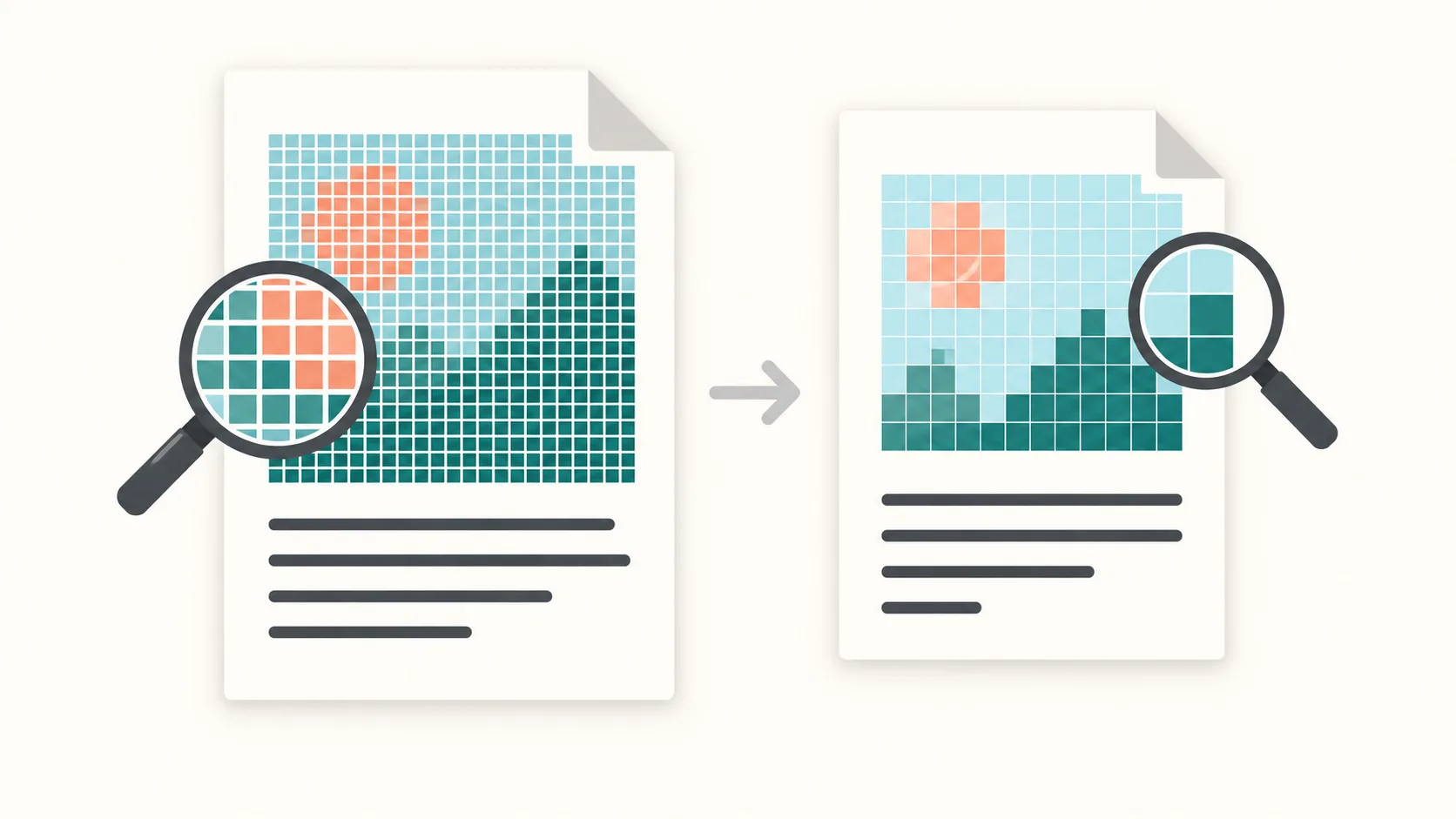
Beginnen Sie mit der Optimierung. PDFThin entfernt versteckten Ballast, bereinigt Metadaten und komprimiert Bilder, wo es sicher ist. In vielen Fällen entsteht so eine kleinere Datei ohne sichtbare Änderungen an Layout oder Textschärfe.
Überschreitet die PDF weiterhin Ihre Zielgröße, ist Teilen der zuverlässigste Ausweg. Statt an einem Qualitätsregler zu raten, erhalten Sie eine ZIP mit geordneten Teilen, die jeweils unter dem Limit bleiben. Die Teile sind bereit zum Anhängen, und die Seitenreihenfolge bleibt erhalten.
Dieser Workflow – passend machen oder teilen – liefert immer ein versandfähiges Ergebnis: eine PDF, die passt, oder mehrere Teile, die es tun.
Schritt 3: Bei Bedarf teilen
Für textlastige PDFs reicht meist das ausgewogene Standard‑Preset. Für scan- oder fotolastige Dokumente aktivieren Sie Smart‑Quality. Es sucht die höchste Qualität, die Ihr Ziel noch einhält – Sie behalten die Lesbarkeit ohne manuelles Ausprobieren.
Steht Qualität an erster Stelle, nutzen Sie ein Qualitäts‑Preset und prüfen Sie danach die Größe. Müssen Sie ein striktes Größenlimit einhalten, wählen Sie ein MB‑Preset oder ein eigenes Ziel und überlassen Sie PDFThin die Abwägung.
Denken Sie daran: Die endgültige E‑Mail‑Größe zählt mehr als die Größe auf der Festplatte. Im Zweifel wählen Sie ein kleineres Ziel, um Zustellfehler zu vermeiden.
Checkliste vor dem Senden
1) Wählen Sie das passende E‑Mail‑Preset (Gmail 25 MB, Outlook 20 MB oder Outlook.com 25 MB). 2) Liegt die Datei nahe am Limit, setzen Sie ein eigenes Ziel 2–5 MB unter der Grenze. 3) Ist das Ergebnis weiterhin zu groß, lassen Sie PDFThin die PDF in geordnete Teile teilen.
Halten Sie die finale(n) Datei(en) bereit zum Anhängen und vermeiden Sie weitere Konvertierungen nach dem Download. Wenn Sie die PDF mit mehreren Empfängern teilen, beschleunigt die kleinere Größe auch Uploads und Downloads.
Starten Sie hier: PDF für E‑Mail komprimieren.
FAQ zur E‑Mail‑Komprimierung
Welche Limits sind üblich?
Gmail erlaubt 25 MB, Outlook oft 20 MB, Outlook.com 25 MB.
Warum scheitert eine 24‑MB‑PDF?
Base64/MIME‑Overhead kann die Nachricht vergrößern. Wähle ein kleineres Ziel.
Was, wenn Komprimierung nicht reicht?
Dann teilen wir nach Größe, damit jedes Teil sicher passt.
Weitere Wege für E‑Mail‑fähige PDFs
Verwandte Tools
Benötigen Sie Teile statt einer einzelnen Datei? Nutzen Sie Split nach Größe. Für scanlastige Dokumente siehe Scans verkleinern.