
Guida completa: comprimi PDF per email
Questa guida aiuta a far rientrare i PDF in Gmail 25 MB, Outlook 20 MB o un target personalizzato. Ottimizziamo prima e dividiamo solo se serve.
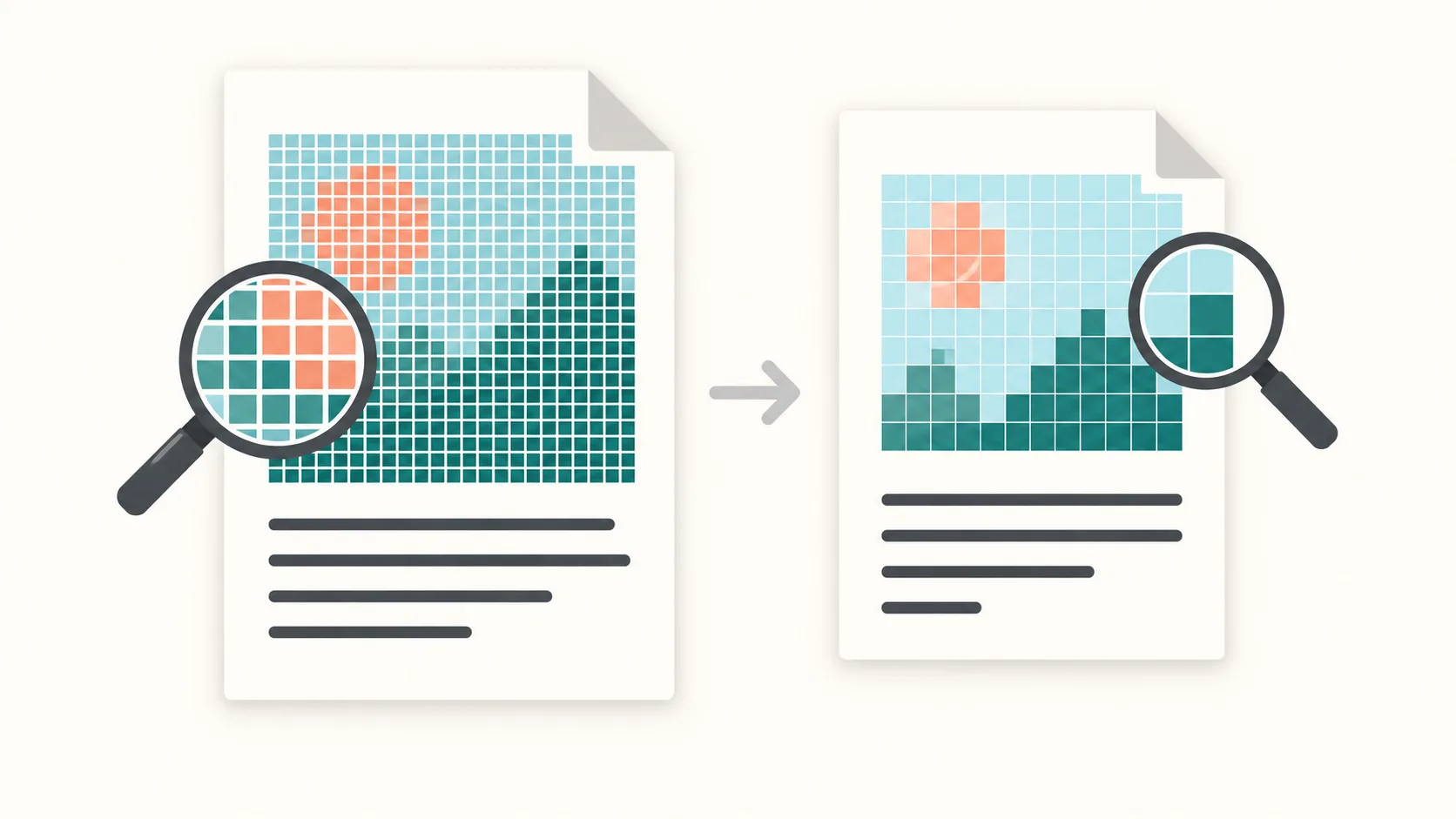
Passo 1: Controlla il limite
La maggior parte dei provider indica una dimensione massima per gli allegati, ma il limite reale è più basso quando l’email viene codificata per la consegna. Gli allegati sono incapsulati in Base64/MIME, aggiungendo circa il 30% di overhead. Per questo un PDF che sembra 24 MB su disco può comunque fallire l’invio.
Gmail consente fino a 25 MB per allegato, Outlook spesso limita gli account Internet a circa 20 MB e Outlook.com supporta 25 MB. Se vedi errori di consegna, imposta un obiettivo più basso (18–20 MB) per lasciare margine alla codifica.
PDFThin applica un margine di sicurezza per mantenere l’allegato finale sotto il limite. Puoi anche scegliere una dimensione obiettivo personalizzata se la tua organizzazione impone un tetto più severo.
Passo 2: Ottimizza prima
Inizia con l’ottimizzazione. PDFThin rimuove il peso nascosto, pulisce i metadati e comprime le immagini quando è sicuro farlo. In molti casi questo produce un file più piccolo senza cambiamenti visibili al layout o alla nitidezza del testo.
Se il PDF supera ancora la tua dimensione obiettivo, la divisione è il ripiego più affidabile. Invece di andare a tentativi con un cursore di qualità, otterrai uno ZIP con parti ordinate che restano ciascuna sotto il limite. Le parti sono pronte da allegare e l’ordine delle pagine è preservato.
Questo flusso «adatta o dividi» significa che ottieni sempre un risultato inviabile: un PDF che rientra, o più parti che rientrano.
Passo 3: Dividi se necessario
Per i PDF ricchi di testo, il preset bilanciato predefinito di solito basta. Per i documenti ricchi di scansioni o foto, attiva la qualità intelligente. Cerca la qualità più alta che rispetta ancora il tuo obiettivo, così mantieni la leggibilità senza tentativi manuali.
Se la qualità è la tua priorità, usa un preset di qualità e poi controlla la dimensione risultante. Se devi rispettare un limite di dimensione rigido, scegli un preset in MB o un obiettivo personalizzato e lascia che PDFThin gestisca il compromesso.
Ricorda: la dimensione finale dell’email conta più della dimensione su disco. In caso di dubbio, scegli un obiettivo più basso per evitare errori di consegna.
Checklist prima dell’invio
1) Scegli il preset email corretto (Gmail 25 MB, Outlook 20 MB o Outlook.com 25 MB). 2) Se il file è vicino al limite, imposta un obiettivo personalizzato 2–5 MB sotto il tetto. 3) Se il risultato è ancora troppo grande, lascia che PDFThin divida il PDF in parti ordinate.
Tieni i file finali pronti da allegare ed evita conversioni aggiuntive dopo il download. Se condividi il PDF con più destinatari, la dimensione ridotta accelera anche caricamenti e download.
Inizia da qui: Comprimere PDF per email.
FAQ compressione email
Quali sono i limiti tipici?
Gmail 25 MB, Outlook spesso 20 MB, Outlook.com 25 MB.
Perché un PDF da 24 MB fallisce?
L’overhead Base64/MIME può aumentare la dimensione. Scegli un target più basso.
Se non basta?
Dividere per dimensione garantisce parti sotto il limite.
Altri modi per preparare PDF per email
Strumenti correlati
Servono parti invece di un unico file? Usa Dividi per dimensione. Per scansioni, vedi Riduci PDF scansionato.