
Guía completa: Comprimir PDF para email
Con esta guía haces que tus PDFs quepan en Gmail 25 MB, Outlook 20 MB o un tamaño personalizado. Primero optimizamos y solo dividimos si hace falta.
Paso 1: Revisa el límite
La mayoría de proveedores publica un tamaño máximo de adjunto, pero el límite útil es menor una vez que el correo se codifica para el envío. Los adjuntos se envuelven en Base64/MIME, lo que añade aproximadamente un 30 % de sobrecarga. Por eso un PDF que parece de 24 MB en disco puede fallar al enviarse.
Gmail permite hasta 25 MB por adjunto, Outlook suele limitar las cuentas de Internet a unos 20 MB y Outlook.com admite 25 MB. Si hay rebotes, fija un objetivo menor (18–20 MB) para dejar margen a la codificación.
PDFThin aplica un margen de seguridad para mantener el adjunto final bajo el límite. También puedes elegir un tamaño objetivo personalizado si tu organización impone un tope más estricto.
Paso 2: Optimiza primero
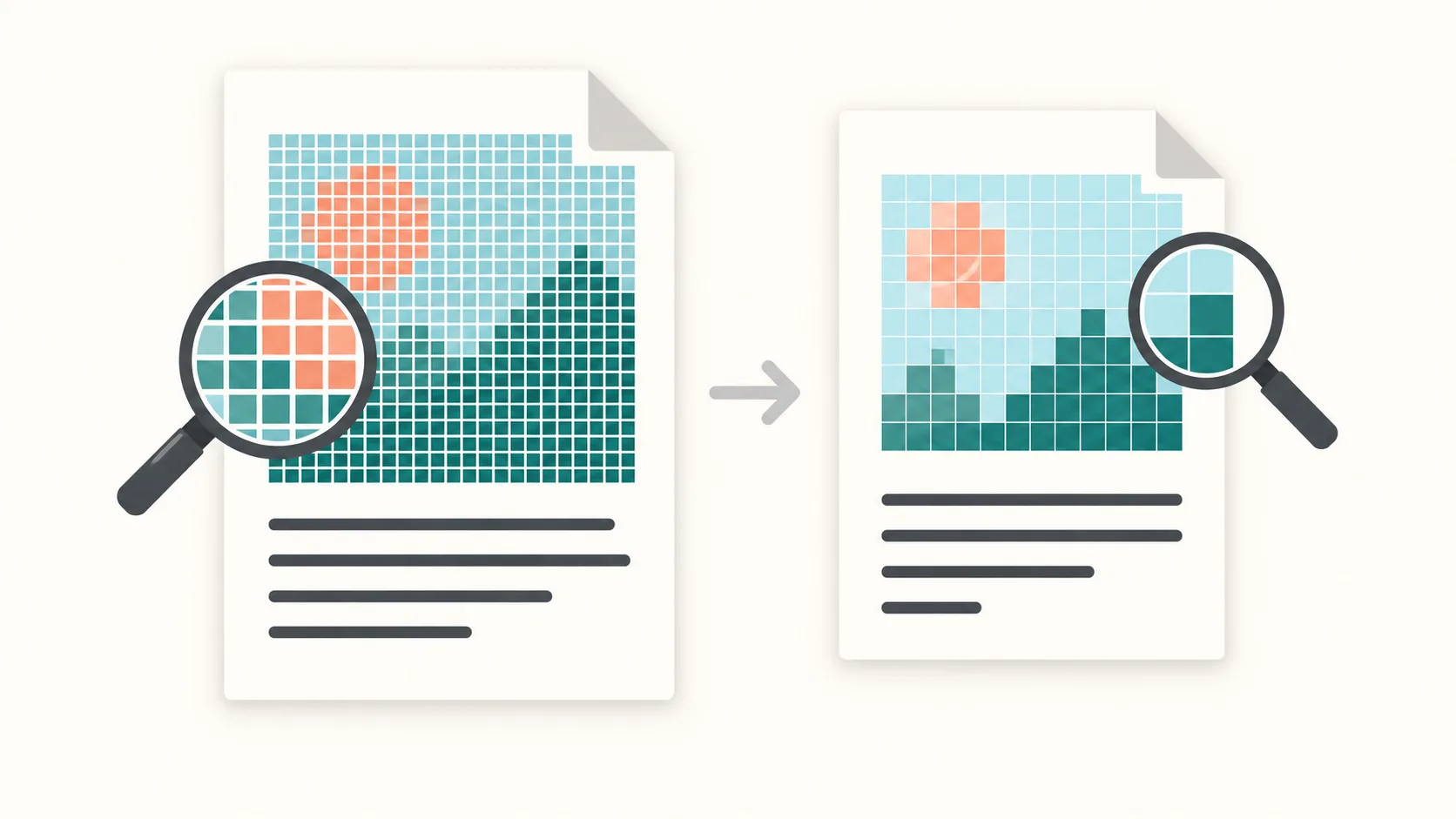
Empieza por la optimización. PDFThin elimina peso oculto, limpia metadatos y comprime imágenes cuando es seguro hacerlo. En muchos casos, esto produce un archivo más pequeño sin cambios visibles en el diseño ni en la nitidez del texto.
Si el PDF sigue superando tu tamaño objetivo, dividir es la alternativa más fiable. En lugar de adivinar con un control de calidad, obtendrás un ZIP con partes ordenadas que se mantienen bajo el límite. Las partes están listas para adjuntar y el orden de las páginas se conserva.
Este flujo de ajustar o dividir significa que siempre obtienes un resultado enviable: un PDF que cabe, o varias partes que sí lo hacen.
Paso 3: Divide si es necesario
Para PDFs con mucho texto, el preset equilibrado por defecto suele bastar. Para documentos con muchos escaneos o fotos, activa la calidad inteligente. Busca la máxima calidad que aún cumple tu objetivo, así conservas la legibilidad sin prueba y error manual.
Si la calidad es tu prioridad, usa un preset de calidad y luego comprueba el tamaño resultante. Si debes cumplir un límite de tamaño estricto, elige un preset en MB o un objetivo personalizado y deja que PDFThin gestione el equilibrio.
Recuerda: el tamaño final del correo importa más que el tamaño en disco. Ante la duda, elige un objetivo menor para evitar errores de entrega.
Lista de comprobación antes de enviar
1) Elige el preset de email correcto (Gmail 25 MB, Outlook 20 MB u Outlook.com 25 MB). 2) Si el archivo está cerca del límite, fija un objetivo personalizado 2–5 MB por debajo del tope. 3) Si el resultado sigue siendo demasiado grande, deja que PDFThin divida el PDF en partes ordenadas.
Ten los archivos finales listos para adjuntar y evita conversiones adicionales tras la descarga. Si compartes el PDF con varios destinatarios, el menor tamaño también acelera las subidas y descargas.
Empieza aquí: Comprimir PDF para email.
FAQ de compresión para email
¿Cuáles son los límites típicos?
Gmail permite 25 MB, Outlook suele 20 MB y Outlook.com 25 MB.
¿Por qué falla un PDF de 24 MB?
La sobrecarga Base64/MIME puede aumentar el tamaño. Usa un objetivo menor.
¿Qué hago si no cabe?
Dividir por tamaño garantiza que cada parte cumpla el límite.
Más formas de preparar PDFs para email
Herramientas relacionadas
¿Necesitas partes en lugar de un solo archivo? Usa Dividir por tamaño. Para escaneos, mira Reducir PDF escaneado.