
Complete guide: Compress PDF for email
Use this guide to make PDFs fit Gmail 25MB, Outlook 20MB, or any custom size. We optimize first and split only if the file still won’t fit.
Understand email attachment limits
Most providers publish a maximum attachment size, but the usable limit is smaller once the email is encoded for delivery. Attachments are wrapped in Base64/MIME, which adds roughly 30% overhead. That’s why a PDF that looks like 24 MB on disk can still fail to send.
Gmail allows up to 25 MB of attachments per email, Outlook often caps internet accounts around 20 MB, and Outlook.com supports 25 MB. If you see bounce errors, set a lower target (18–20 MB) to leave headroom for encoding.
PDFThin applies a safety margin to keep the final attachment under the limit. You can also choose a custom target size if your organization enforces a stricter cap.
The best workflow: optimize, then split
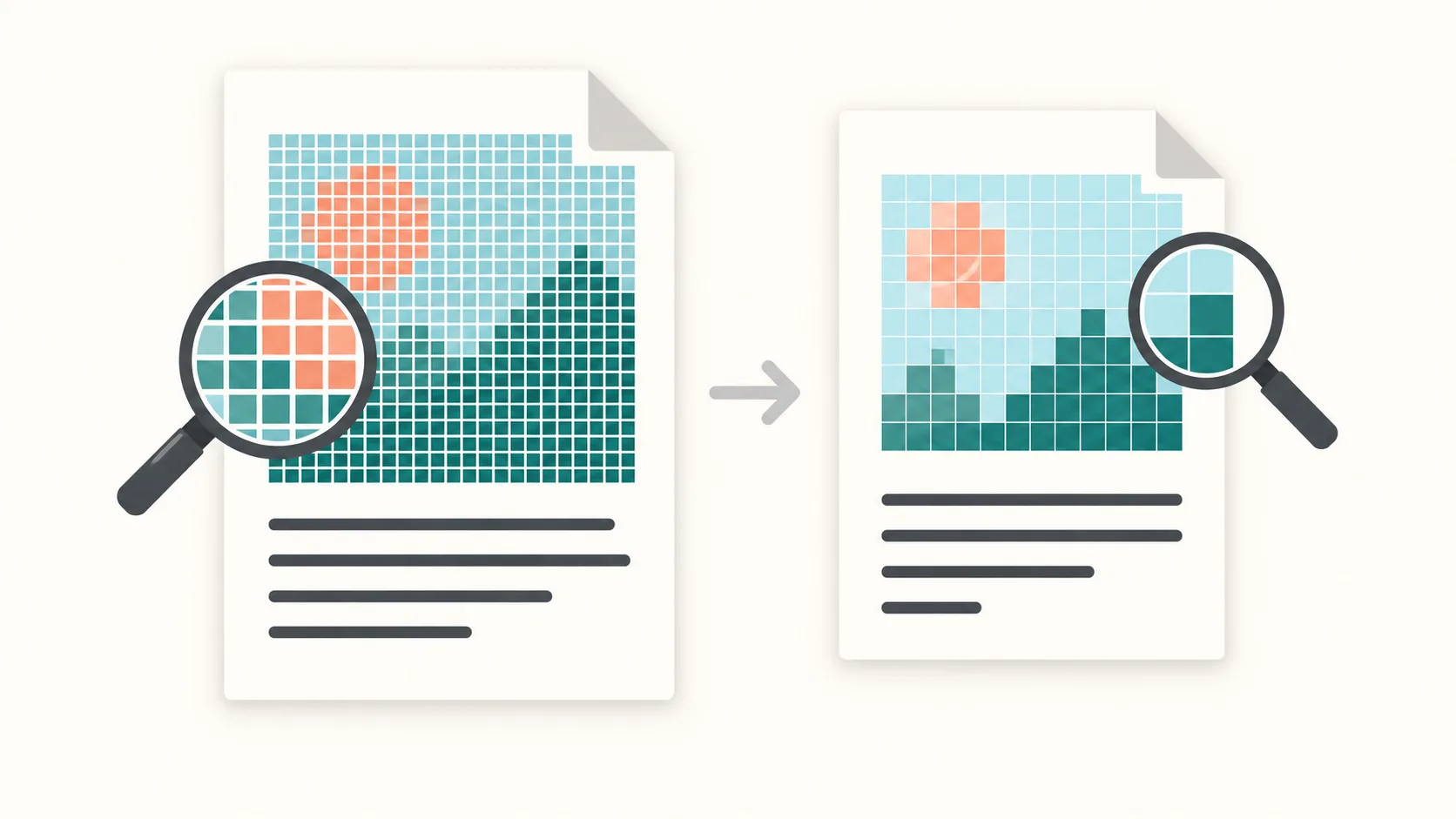
Start with optimization. PDFThin removes hidden bloat, cleans metadata, and compresses images when it is safe to do so. In many cases, this produces a smaller file without visible changes to layout or text clarity.
If the PDF still exceeds your target size, splitting is the most reliable fallback. Instead of guessing a quality slider, you’ll get a ZIP with ordered parts that each stay under the limit. The parts are ready to attach and the page order is preserved.
This fit‑or‑split workflow means you always get a sendable outcome: one PDF that fits, or multiple parts that do.
Choosing the right quality setting
For text‑heavy PDFs, the default balanced preset is usually enough. For scan‑heavy or photo‑heavy documents, enable Smart quality. It searches for the highest quality that still meets your target, so you keep readability without manual trial and error.
If quality is your top concern, use a quality preset and then check the resulting size. If you must hit a strict size limit, choose an MB preset or custom target and let PDFThin handle the trade‑off.
Remember: the final email size matters more than the on‑disk size. When in doubt, choose a smaller target to avoid delivery errors.
Checklist before you send
1) Choose the correct email preset (Gmail 25MB, Outlook 20MB, or Outlook.com 25MB). 2) If the file is close to the limit, set a custom target 2–5 MB below the cap. 3) If the result is still too large, let PDFThin split the PDF into ordered parts.
Keep the final file(s) ready to attach and avoid additional conversions after download. If you share the PDF across multiple recipients, the smaller size also speeds up uploads and downloads.
Start here: Compress PDF for Email.
Email compression FAQ
What is Gmail’s attachment limit?
Gmail supports up to 25 MB of attachments per email. If the file is larger, Gmail sends a Google Drive link instead.
Why does a 24 MB PDF sometimes fail to send?
Email systems add Base64/MIME overhead, which increases message size. Use a lower custom target if you hit errors.
What if the PDF still does not fit?
PDFThin splits the document into ordered parts under your limit.
More ways to prepare email‑ready PDFs
Related tools
Need parts instead of a single file? Use Split by size. For scan‑heavy documents, see Reduce scanned PDF size.