
Guia completo: reduzir PDF digitalizado
Scans são pesados. Este guia mostra como reduzir o tamanho e verificar a legibilidade do resultado.
Por que scans são grandes
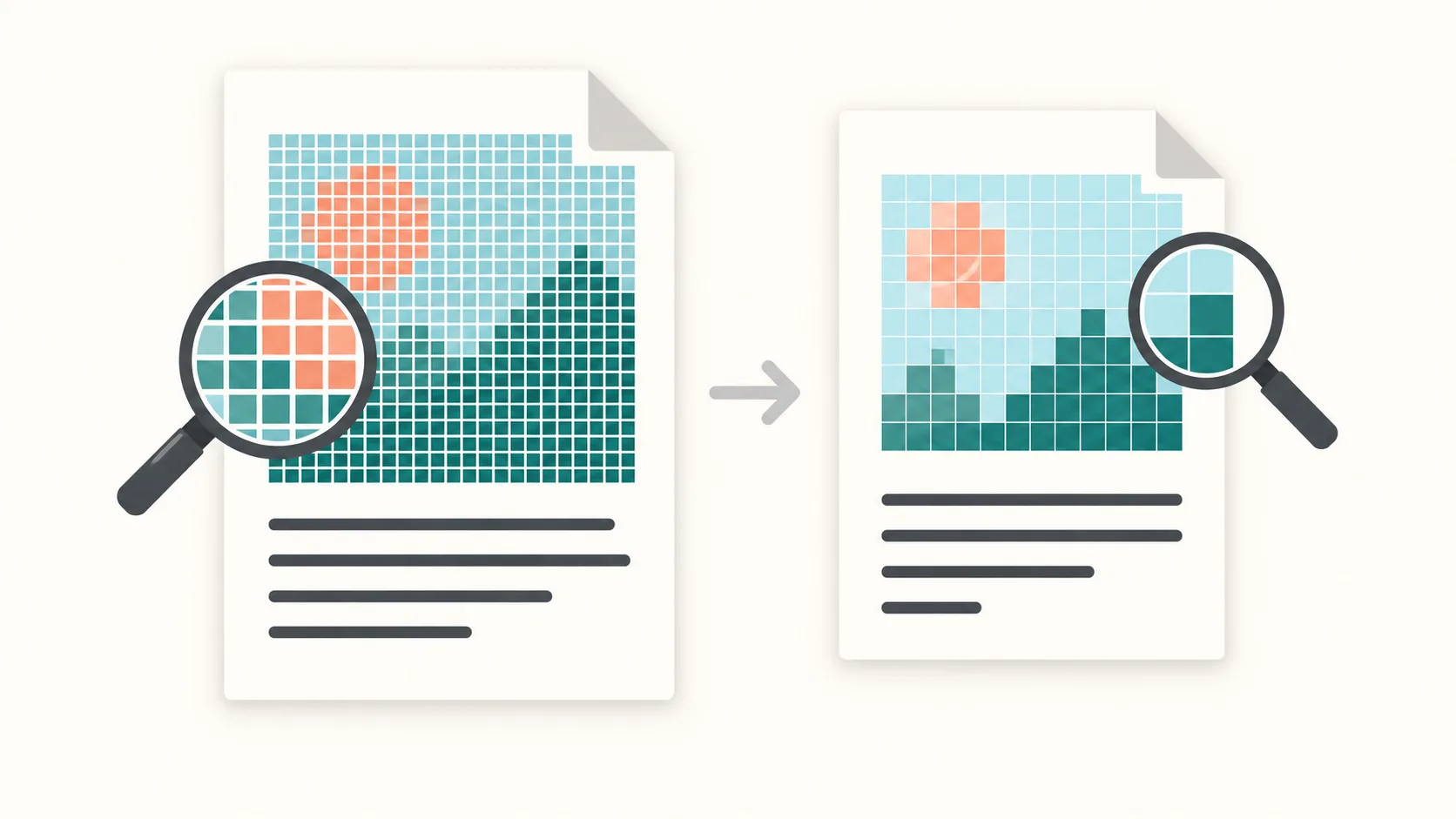
Os scanners guardam cada página como uma imagem grande. Uma digitalização a 300–600 DPI pode ocupar vários megabytes por página, pelo que documentos longos chegam depressa aos 50–200 MB. Ao contrário dos PDFs de texto, os ficheiros digitalizados não comprimem bem com uma simples limpeza de metadados.
A recompressão de imagens e a remoção de dados de cor desnecessários podem reduzir o tamanho, mas também alterar os detalhes e a legibilidade.
O PDFThin concentra-se no conteúdo que importa: nitidez do texto e ordem das páginas. Escolhe o objetivo, e a ferramenta equilibra tamanho e legibilidade.
Preserve a legibilidade
Comece com qualidade inteligente e compare o resultado com o original. Verifique sobretudo o texto pequeno, as tabelas e os carimbos; uma definição de qualidade não garante a legibilidade.
Um limite de tamanho rígido pode exigir uma compressão de imagens mais forte. Se detalhes importantes ficarem desfocados, tente um objetivo maior ou uma definição de qualidade menos agressiva.
Um objetivo de tamanho menor não melhora automaticamente a qualidade. A compressão pode eliminar detalhes e não pode recuperar os que faltam no original.
Defina um alvo
Comece com um preset de email se você pretende enviar o arquivo como anexo. O Gmail usa 25 MB, o Outlook costuma usar 20 MB e o Outlook.com suporta 25 MB. Se o seu PDF estiver um pouco acima do limite, defina uma meta personalizada 2–5 MB menor para evitar a sobrecarga de codificação.
Para carregamentos, escolha o limite real por ficheiro e verifique a legibilidade. Não existe um objetivo universal em KB por página adequado a todas as digitalizações.
A divisão conserva páginas inteiras e a sua ordem. Não consegue fazer caber uma única página demasiado grande no limite; tente um objetivo maior, uma compressão mais forte ou uma nova digitalização e verifique o resultado.
Lista de verificação prática para PDFs digitalizados
1) Guarde o original. 2) Escolha um objetivo em MB segundo o limite real por ficheiro. 3) Divida apenas se o destinatário aceitar vários ficheiros. O limite aplica-se a cada parte PDF, não ao ZIP completo. 4) Compare o texto pequeno, as tabelas e os carimbos com o original.
Se não precisar de cor, uma nova digitalização em escala de cinzentos pode reduzir o tamanho na origem. Verifique também a legibilidade após a compressão, antes de partilhar o ficheiro.
Comece aqui: Compressão pronta para email ou Dividir por tamanho.
Se a seleção falha, consulte o guia do texto não selecionável. Se o tamanho muda pouco, leia porque outra compressão pode trazer pouco benefício.
FAQ de scans
Por que scans são tão grandes?
Porque cada página é uma imagem.
O texto continuará legível?
Não é garantido. A compressão pode eliminar detalhes da imagem. Compare o texto pequeno, as tabelas e os carimbos com o original.
E se ainda não couber?
A divisão pode ajudar se forem aceites vários ficheiros. Não faz caber uma única página demasiado grande; escolha um objetivo maior ou tente uma compressão mais forte ou uma nova digitalização.
Recursos úteis
Outras ferramentas
Com limites, divida: Dividir por tamanho.