
Reduce Scanned PDF Size: Check Quality Before Sharing
Scans usually store pages as images. Choose a size target, start with balanced quality, and compare the output with the original before sending it.
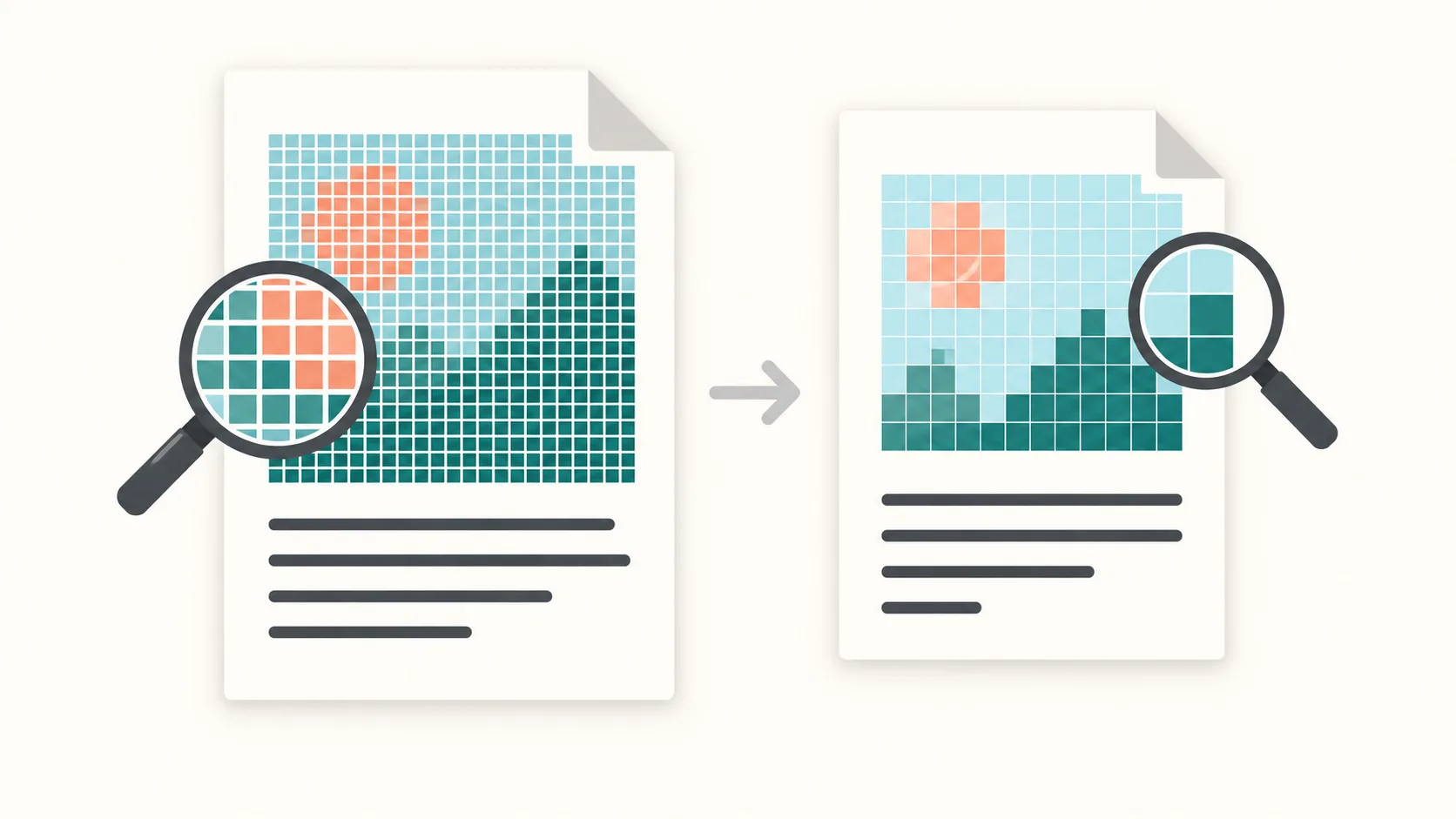
Step 1: Upload and assess the scan
Scanned pages usually contain images; color, photos and high resolution can make the PDF larger than one created from text.
Keep the original for comparison. Decide which details must stay clear, especially small print, stamps and signatures.
Step 2: Start with balanced quality
Try Smart quality or balanced quality first. Reduce quality further only if the result is still too large and the details remain useful.
The smallest file is not always the best: image compression can blur text or fine lines and does not guarantee a lossless result.
Step 3: Set a target and consider splitting
Choose a target for the service that will receive the PDF. For email, check the total attachment limit per message, not just each file’s size.
If one file cannot meet the target at suitable quality, split by size. A single oversized page can still prevent reaching the target; a higher limit or another sharing method may be needed.
Step 4: Download and compare with the original
Zoom in on small text, stamps, signatures and fine lines. Compare with the original and check that all pages are present.
If OCR matters, test text selection and search in the output. Do not assume the text layer survived; increase quality or the target if the result is unsuitable.
FAQ
Will OCR be preserved?
Do not assume OCR or a searchable text layer is preserved in every output. Test selecting text and searching for known words. Image clarity and text searchability are different checks.
Will the text stay readable?
Readability is not guaranteed. Start with balanced or Smart quality, then compare small text, stamps and signatures with the original.
What if one file does not fit?
Try a higher target or split by size. Splitting cannot make an oversized single page fit automatically. Extract the ZIP and check each PDF; the ZIP itself may exceed the target.
Practical options for smaller scans
One file or several parts
Try compression when you need one file. If the target requires too much quality loss, consider splitting or sharing a link instead.
When you get a ZIP, extract it before sending. Check each part and send parts in separate messages if their combined size exceeds your mail limit.
Prepare and review carefully
Remove blank pages before uploading. Crop margins only if you can preserve notes, stamps and signatures.
For more detail, read the complete scanned-PDF guide or the guide to fitting a PDF under 20 MB.