
Why won’t my PDF get much smaller?
A small reduction can be a sensible result. Compression has less room to work when a PDF already stores its content efficiently. Judge the output by its actual size and readability, rather than expecting a fixed saving from every document.
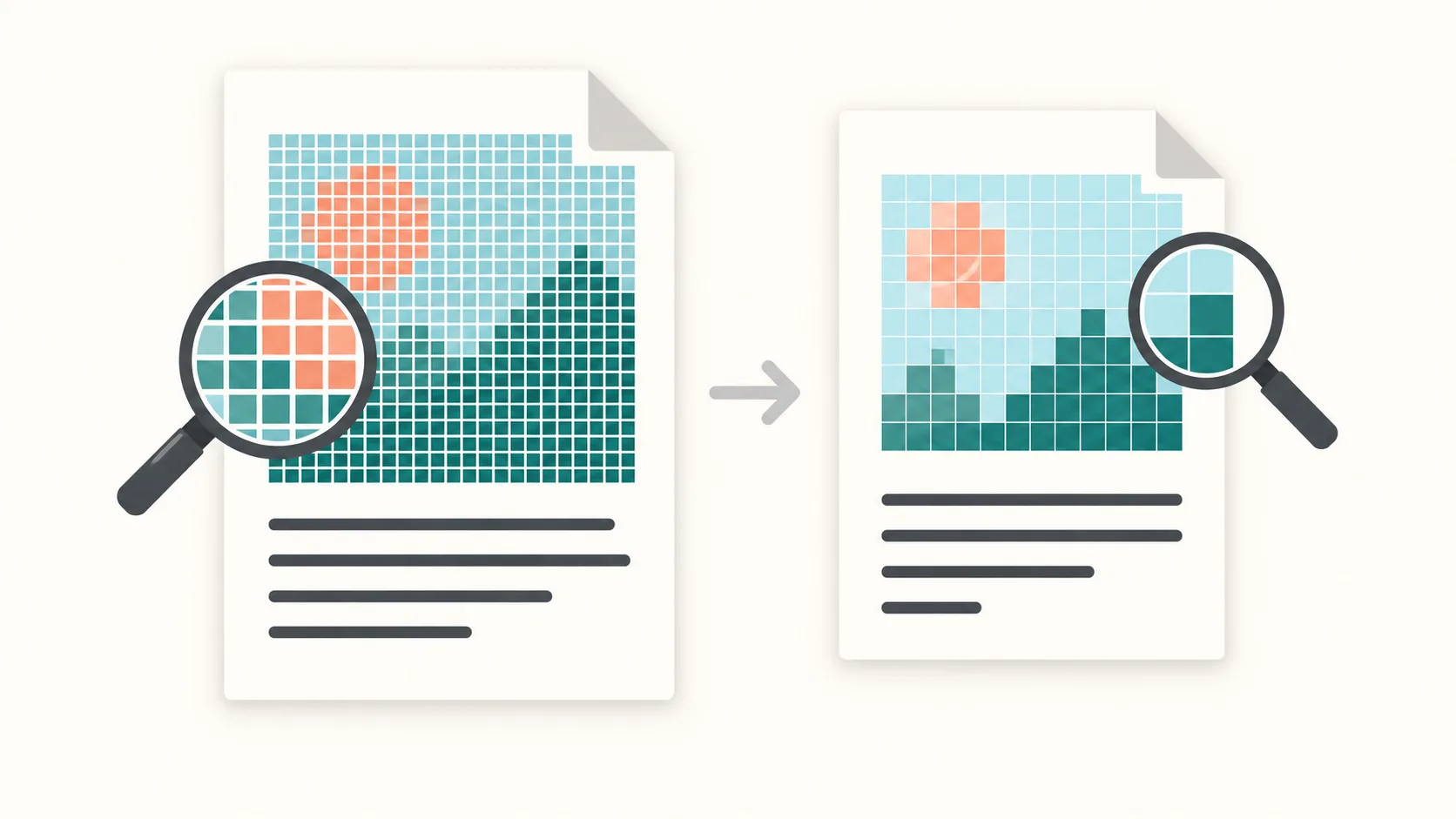
Rewriting does not guarantee a smaller file
A compression tool reads and rewrites document data, but the new representation is not necessarily smaller. Ghostscript’s PDF optimization explanation states that its PDF output can grow. Extra structure or a different encoding may outweigh any bytes saved elsewhere. This explains why a tool cannot promise the same reduction for every input.
Compare exact input and output sizes for your file. Keep the smaller usable version and retain the original. If the result barely changes, check what the document contains before repeatedly applying stronger settings.
Already compressed data has limited headroom
Images and data streams may already use effective compression. The qpdf optimization manual explains that already Flate-compressed streams are generally left alone unless recompression is requested. Structural cleanup can sometimes help, but it cannot assume a large amount of redundant data exists in every PDF.
Repeatedly processing the same optimized file may therefore offer little benefit. If you have the editable source, inspect its export options instead. Unnecessary images or excessive image resolution can be addressed there while preserving a clear original for comparison.
Images and text offer different opportunities
Ghostscript’s guidance identifies image data as a frequent large component when images are present. A scan containing full-page pictures may offer opportunities to reduce image resolution or change encoding. A report made mostly of text and vector drawings may have much less image data to reduce.
This is a consequence of how the content is stored, not a rule that every scan will shrink well. Page count alone does not predict the saving. See the scanned PDF guide for image-heavy documents.
Stronger compression can cost detail
Reducing image resolution removes detail, and lossy re-encoding can introduce visible artifacts. Ghostscript warns about recompressing JPEG images; qpdf also documents JPEG optimization artifacts. Repeating a lossy operation is not a dependable way to improve the quality-to-size balance.
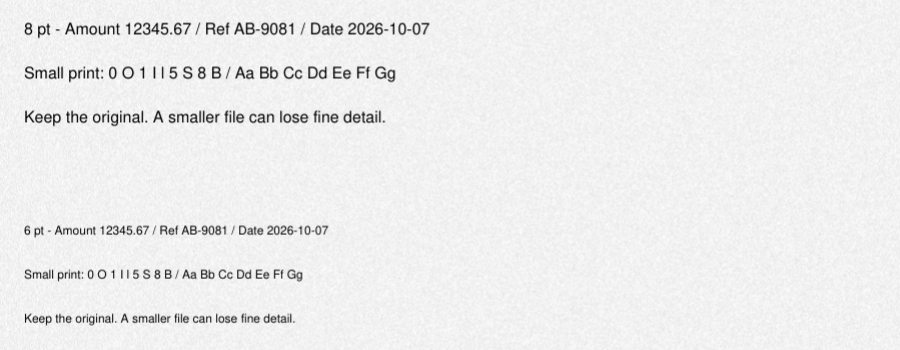
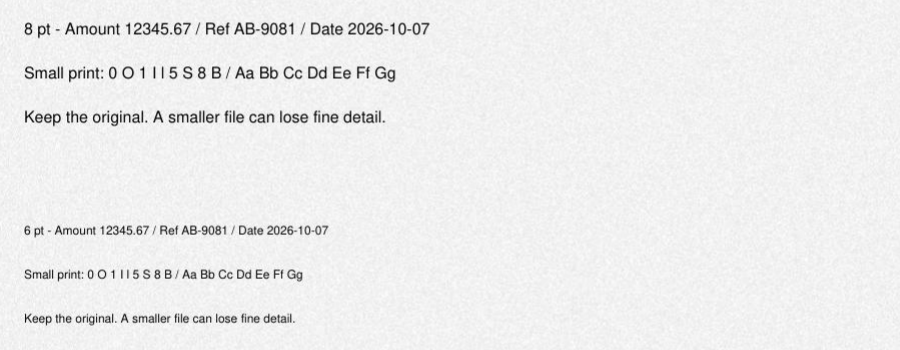
Compare small print, stamps, thin lines and diagrams at a useful reading zoom. Check every important page, not only the cover. Accept a smaller version only when the remaining detail serves its purpose. Keep the original if stronger settings make important information harder to read.
Use the delivery requirement to decide
If a recipient accepts multiple files, split the PDF by size instead of sacrificing legibility. If unnecessary pages can be removed, use page organization and check the resulting order. For email, read the compression and splitting guide.
Try PDFThin compression on a copy and assess the actual result. It does not guarantee a reduction, perform OCR or certify PDF/A. If archival conformance matters, read PDF versus PDF/A before changing the preserved document.
One measured example: a synthetic scan
On October 7, 2026, we ran the local PDFThin pipeline on an owned artificial one-page image-only scan at 144 dpi. It contained fine print originally set at 6, 8, 10 and 12 points. This was a synthetic test, not a production run or customer document. The input was 1,210,534 bytes; lossless processing produced 1,210,511 bytes, saving just 23 bytes.
An image-compression pass used a 1 MiB target of 1,048,576 bytes with a 262,144-byte safety margin, giving an effective target of 786,432 bytes. The qpdf-chunked method at quality 55 produced 248,498 bytes, about 79.5% smaller than the original. A second pass with the same target produced 247,683 bytes, about 0.3% smaller. That pass used mutool-clean: the input was already below the target, so no further lossy image pass was required. This does not prove that maximum possible compression had been reached.
The output’s fine print remained decipherable, with slight changes to edges and backgrounds. Compare these lossless image crops of the 8-point and 6-point text at the same zoom. Results vary; this one artificial file does not guarantee a saving or readable output for another document.
A compact text file may already meet the limit
We also tested an artificial one-page text/vector PDF on October 7, 2026, using the same small-print text as the scan above. It was only 961 bytes. It uses unembedded Helvetica and simple lines; real documents with embedded fonts or images can be much larger. Both the lossless run and the 1 MiB target run returned the 961-byte input unchanged, without an image-compression pass.
With the same 1 MiB target, the image-only scan went from 1,210,534 to 248,498 bytes. These are independent artificial examples with different backgrounds, storage and rasterization, not a controlled comparison of identical pages. The measured outcomes do not establish a general saving or a compression limit. The target is a pipeline test parameter, not a public preset.
If your file already meets the recipient’s limit, check that it is usable and stop. For a large text-based file, inspect images and font/export settings in the source. For a scan, compare fine detail after processing. Choose from the actual file and delivery requirement.