How to Compress a PDF for Email
Email services cap attachments, and PDFs often tip over the line. This guide shows how to compress a PDF so it fits Gmail or Outlook without sacrificing readability.
Step 1: Check the email limit
Gmail allows 25 MB per email, while Outlook commonly limits attachments to 20 MB for internet accounts. These limits are strict, and some systems add Base64/MIME overhead that inflates the message size.
If you do not know the exact limit, start with the Gmail 25 MB preset and then try 20 MB if sending fails.
Step 2: Upload and optimize first
Upload your PDF and choose an email preset. PDFThin runs lossless cleanup to remove hidden bloat without changing layout. Start at Email-ready for the fastest path. If the file still does not fit, the tool automatically applies stronger optimization or prepares the document for splitting.Step 3: Use a custom target when needed
Custom limits are useful when you need room for multiple attachments or when a provider enforces a stricter cap.
A safe fallback is 18-20 MB, which often passes even when a 25 MB file fails to send.
Step 4: Download or split
When the size target is reached, you get a single email-ready PDF.
If the file is still too large, PDFThin splits it into parts under the limit and delivers a ZIP so you can attach each part.
FAQ
Does compression change formatting?
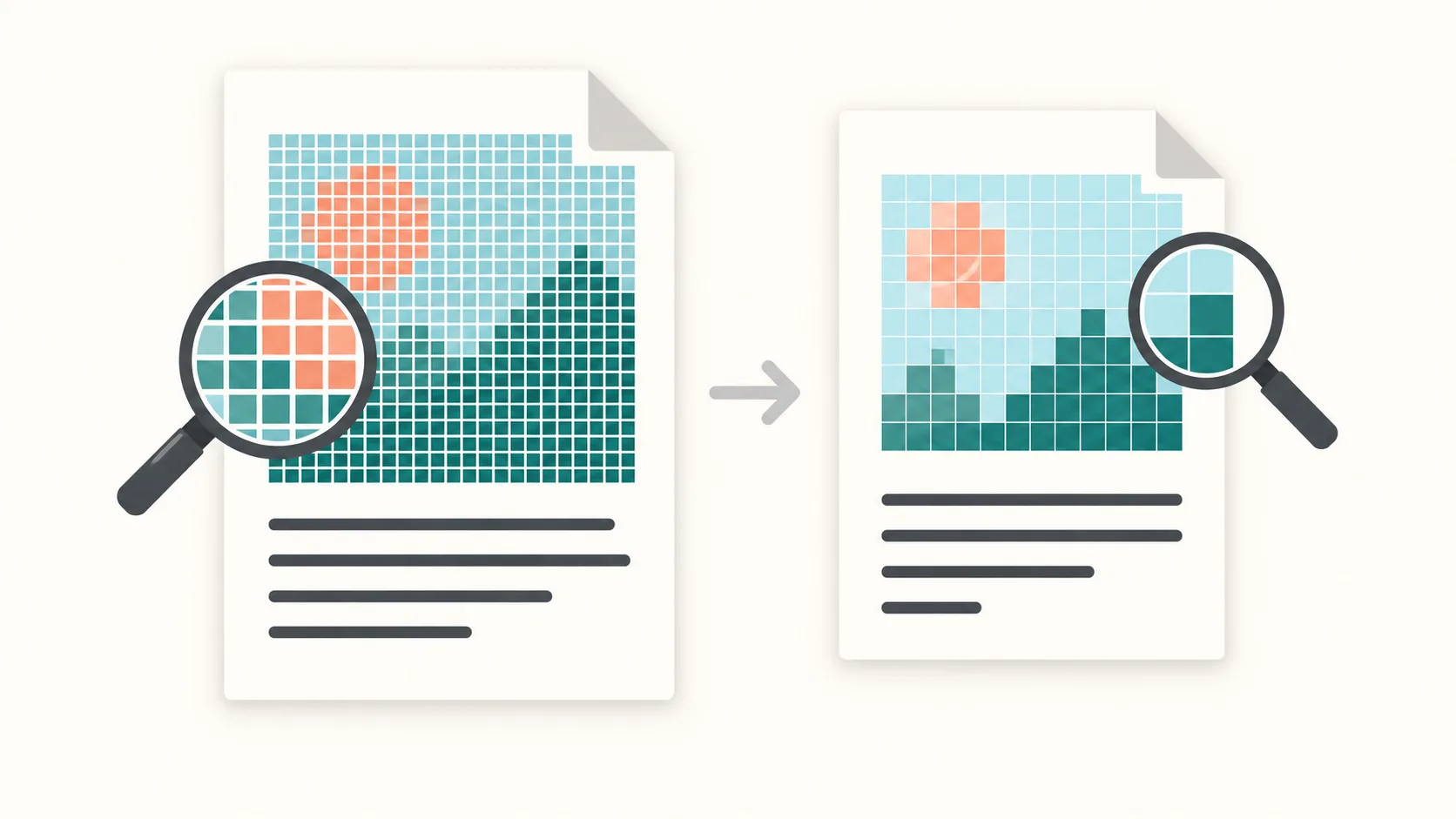
We keep fonts and layout intact whenever possible. Scan-heavy files may receive image recompression to meet the target.
What if one page is too large?
You will see an error indicating a single page exceeds the limit. Try a higher limit or use split-by-size.
How long are files stored?
Files auto-delete after 60 hours, so your documents are not kept longer than needed.
Extra tips
Avoid oversized scans
Scan at 150-200 DPI for email. Higher resolutions dramatically increase file size without improving readability on screen.
Grayscale scans are smaller than full color and often look cleaner for text documents.
Attach in order
If you download a ZIP of parts, attach them in numeric order so recipients can follow the flow.
You can also combine parts later if the recipient needs a single file.